BSS Installation Guide
1. BSS module installation
The module is installed in the same way as many Microsoft Windows programs, i.e. by following the steps of a wizard.
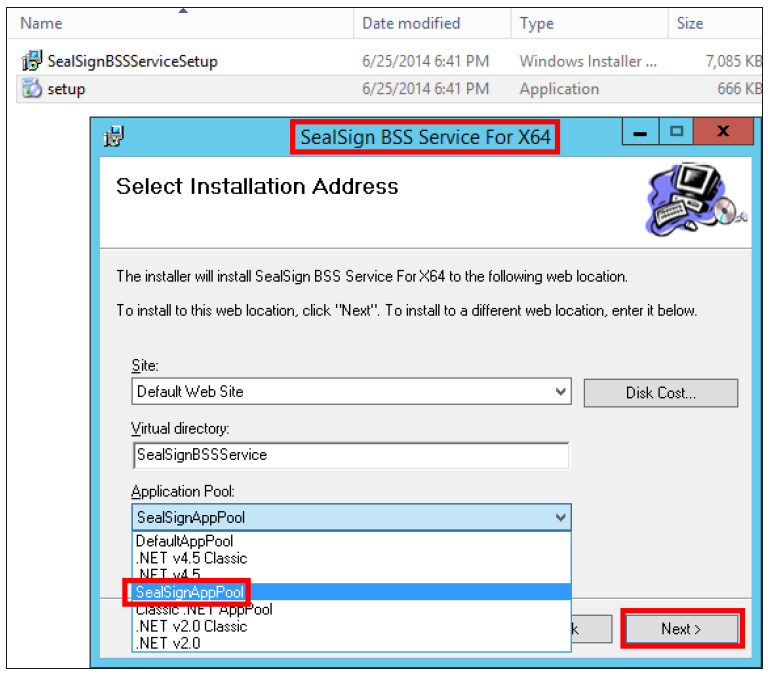
During the installation, you must indicate from the list of available web sites, the one on which you want to install the SealSign DSS electronic signature service, the name of the virtual directory and the Application Pool of the application. SealSign BSS biometric signature service, the name of the virtual directory and the Application Pool of the application configured in the IIS. configured in the IIS (SealSignAppPool in this case).
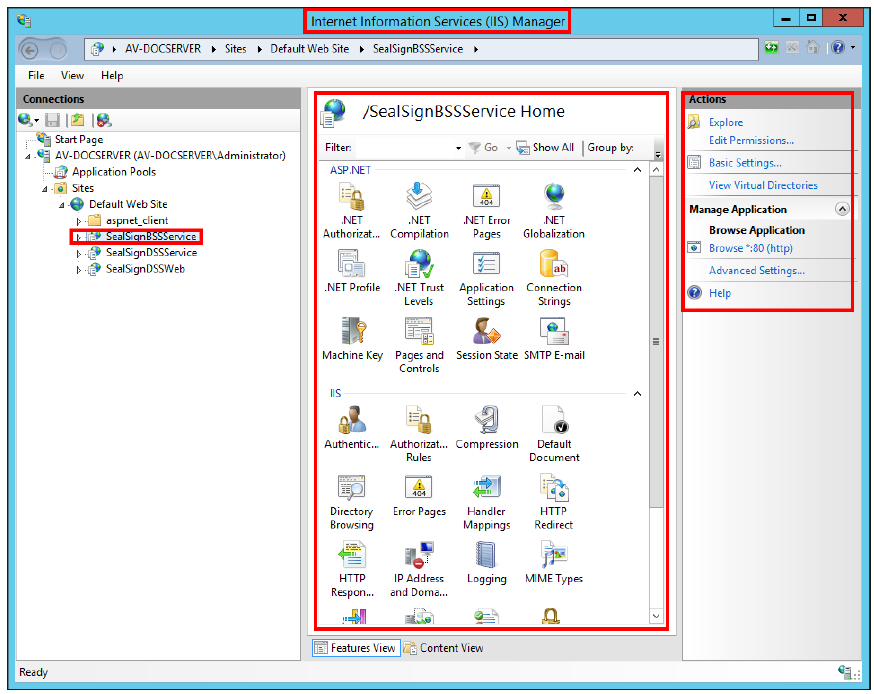
After installation it has been added as an additional program in the list of programs in the Control Panel, and in the IIS will be displayed as a web application.
2. BSS module configuration
This is done in the configuration file connectionStrings.config. This is located in the SealSignBSSService directory of the Web site where the product is installed. This file includes the connection string to the database previously created in SQL Server (SealSignDSS), in addition to other parameters that must be taken into account parameters to be taken into account:
\InetPub\wwwroot\SealSignBSSService
1.1. SQL Server
This file includes the connection string to the database created earlier in SQL Server (SealSignDSS):
  <connectionStrings>
      <add name="SealSignDSSConnectionString"
        connectionString="Data Source=localhost;
        Initial Catalog=SealSignDSS;
        Trusted_Connection=Yes;
        persist security info=False;
        TrustServerCertificate=True" />
  </connectionStrings>
1.2. Oracle
In case the database is Oracle, the following parameters must be modified:
-
Change the value of the FactoryProvider key and set it to System.Data.OracleClient in the file web.config file located in the same directory as the connectionStrings.config file.
-
In the connectionStrings tag you have to configure the connection string for Oracle access. At this address provides information on the creation of connection strings in Oracle.
-
The connectionString attribute of the SealSignDSSConnectionString tag has to be modified and set it to the following format:
  Data Source=(DESCRIPTION=(ADDRESS=(PROTOCOL=XXX)(HOST=XXX)(PORT=XXX))
  (CONNECT_DATA=(SID=XXX)));User Id=identificadorUsuario;Password=Contraseña;
For example:
-
web.config
...<appSettings><add key="FactoryProvider" value="System.Data.OracleClient" />...</appSettings>... -
connectionStrings.config
<connectionStrings><add name="SealSignDSSConnectionString"connectionString="Data Source=(DESCRIPTION=(ADDRESS=(PROTOCOL=TCP)(HOST=172.54.110.112)(PORT=1521))(CONNECT_DATA=(SID=orcl)));User Id=SealSignDSS; Password=1234546;” /></connectionStrings>
1.2. PostGreSQL
In case the database is PostGre, the following parameters must be modified:
-
Change the value of the FactoryProvider key and set it to Npgsql in the web.config file located in the same directory where the connectionStrings.config file is located.
-
In the connectionStrings tag, the connection string for accessing PostGre must be configured. At this URL https://www.connectionstrings.com/npgsql/ it is possible to get information about the creation of connection strings in Oracle. creation of connection strings in PostGreSQL.
-
The connectionString attribute of the SealSignDSSConnectionString tag must be modified, and set it to the following format:
server=XXXX;userid=XXXX;password=XXXX;database=XXXX
For example:
-
web.config
...<appSettings><add key="FactoryProvider" value="Npgsql" />...</appSettings>... -
connectionStrings.config
<connectionStrings><add name="SealSignDSSConnectionString"connectionString=" server=localhost;userid=postgres;password=POSTGRES;database=SealSignDSS”/></connectionStrings>